Managing POS devices
Set up POS devices
Section titled “Set up POS devices”Nuanom replaces bulky old-school POS devices with a simple app that can be set up for as many staff as necessary.
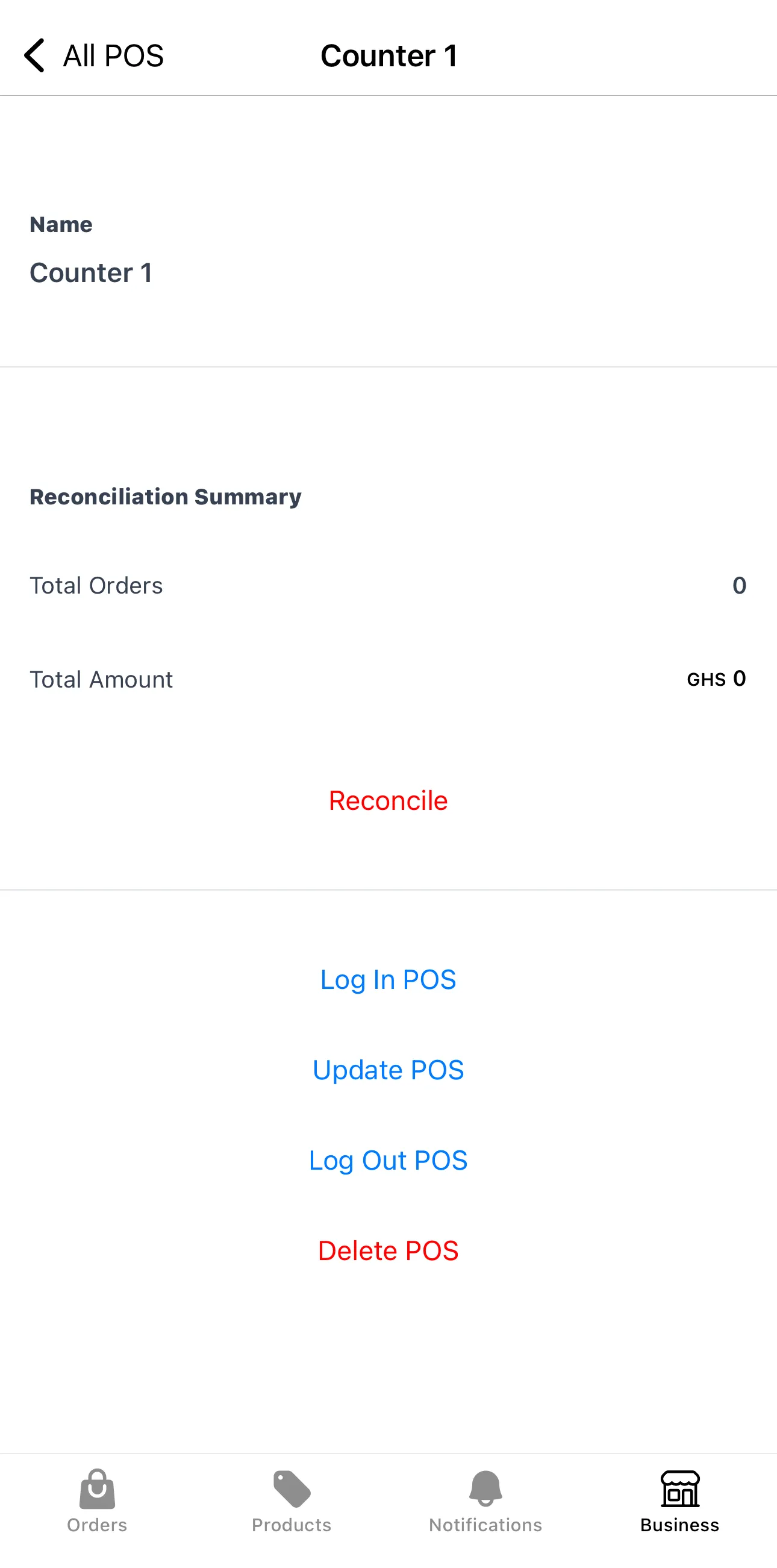
Create an account for each POS device by going to Business > POS in the Nuanom app. You will be required to give the POS a name. We recommend using staff names for the individuals using the POS apps; ‘Afia’, ‘Kofi’…
Staff should download the Nuanom POS app onto their devices. It is available on Android and iOS.
In the Nuanom app, go to Business > POS, tap on the name of each device, and use the Log In POS option to generate a code to log in to the Nuanom POS app. Repeat for all devices.
User Roles
Section titled “User Roles”Each POS user can be given as much or as little access as necessary. There are five (5) roles:
- Order Viewer: Can view all orders for the shop.
- Orders Manager: Can view and perform all actions needed to manage orders.
- Products Viewer: Can view all products for the shop.
- Products Manager: Can view, create and update products.
- WhatsApp AI Manager: Has access to the the WhatsApp AI section to view, respond and resolve conversations.
Roles can be changed when creating or updating a POS.
Log out a POS device
Section titled “Log out a POS device”At any time, you can log out a POS device from the Nuanom app by going to Business > POS, selecting the device, and using the Log Out POS option.
Taking orders with the Nuanom POS app
Section titled “Taking orders with the Nuanom POS app”Taking orders with the Nuanom POS app works exactly the same as creating orders with the Nuanom app. See taking orders via POS.
Reconciling direct payments
Section titled “Reconciling direct payments”When an order is made and the PAID DIRECT option is used, Nuanom keeps the sum of orders made until the shop owner or manager reconciles the POS device.
Use the Reconcile option on the POS screen in the Nuanom app to reset all direct payments back to 0. This is great for daily/periodic reconciliation of funds collected directly.