Managing POS devices
Set up POS devices
Section titled “Set up POS devices”Nuanom replaces bulky old-school POS devices with a simple app that can be set up for as many shop attendants as necessary.
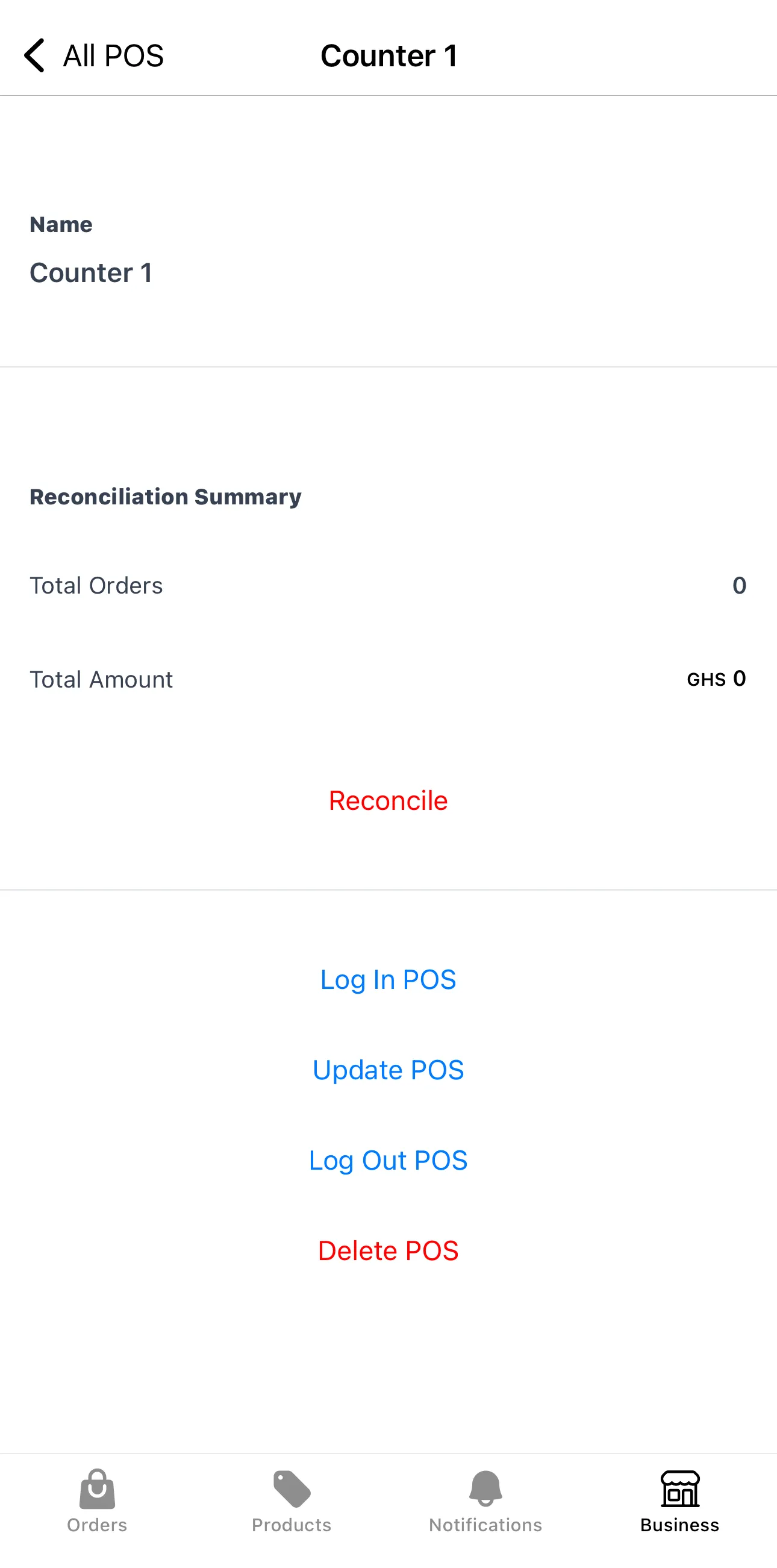
Create an account for each POS device by going to Business > POS in the Nuanom app. You will be required to give the POS a name. You can use generic names like ‘Counter 1’, ‘Counter 2’… or use specific names for the individuals using the POS apps; ‘Afia’, ‘Kofi’…
Shop attendants should download the Nuanom POS app onto their devices. It is available on Android and iOS.
In the Nuanom app, go to Business > POS, tap on the name of each device, and use the Log In POS option to generate a code to log in to the Nuanom POS app. Repeat for all devices.
Log out a POS device
Section titled “Log out a POS device”At any time, you can log out a POS device from the Nuanom app by going to Business > POS, selecting the device, and using the Log Out POS option.
Taking orders with the Nuanom POS app
Section titled “Taking orders with the Nuanom POS app”Taking orders with the Nuanom POS app works exactly the same as creating orders with the Nuanom app. See creating orders.
Reconciling direct payments
Section titled “Reconciling direct payments”When an order is made and the PAID DIRECT option is used, Nuanom keeps the sum of orders made until the shop owner or manager reconciles the POS device.
Use the Reconcile option on the POS screen in the Nuanom app to reset all direct payments back to 0. This is great for daily/periodic reconciliation of funds collected directly.